Importing Files from your Computer to CertiPay
If you need to export a file to your Computer from the CertiPay Program please follow this Article: Export/ Saving Files to your Computer from Certipay
If you need to import a file into CertiPay place your curser on the "Tools" symbol on the left hand side of the screen:

A screen displays showing all of the reports that you have saved and exported to My Documents from CertiPay or Data Tool.
Note: Only reports generated by the currently logged in user are displayed here.
Once you have entered the File Transfer, select on "Choose Files"
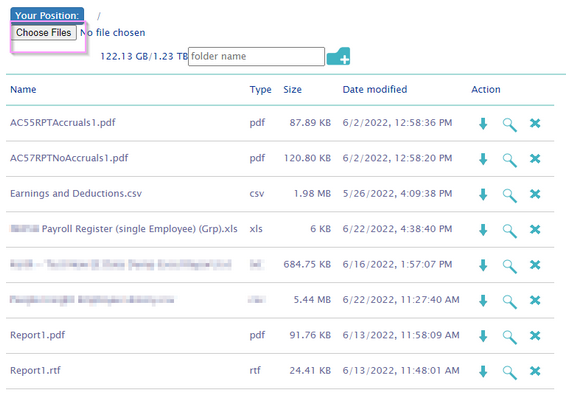
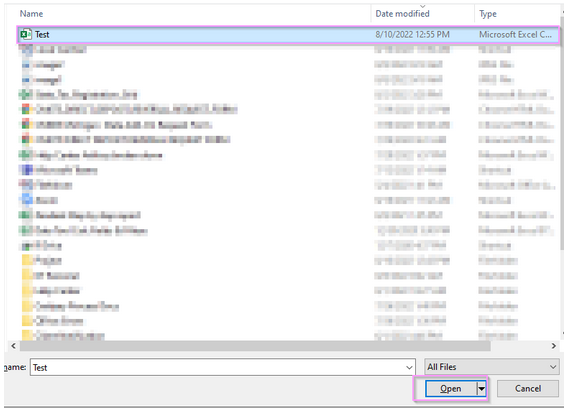
It will populate your computer files for you to select the one you would like to import:
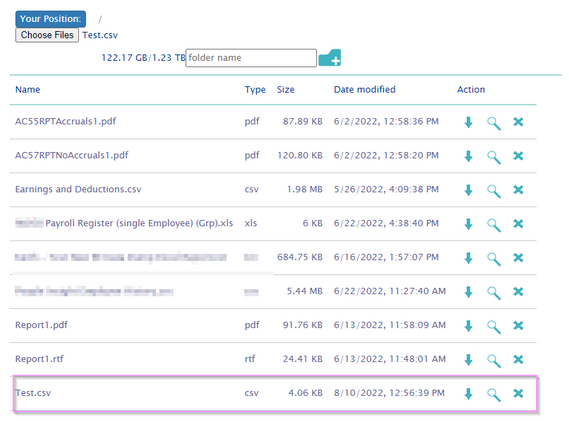
Once you selected it the name should populate in next to Choose Files. Please note that you will need to remember how it is spelled to import it correctly. Example below: " Test.csv"
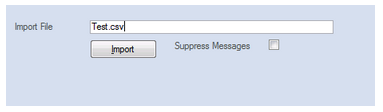
If you need to import it into Step 2, please follow this Article: Payroll Processing Step 2: Express Post and then go into the Import Time. Once you enter the screen you will be able to type the exact name along with the .csv and press import.
If you have any questions please call into Client Services at (800-422-3782) or email Clientservices@certipay.com